A Step-by-Step Guide to Migrating Your Legacy Files to a Cloud DMS
Advertisement
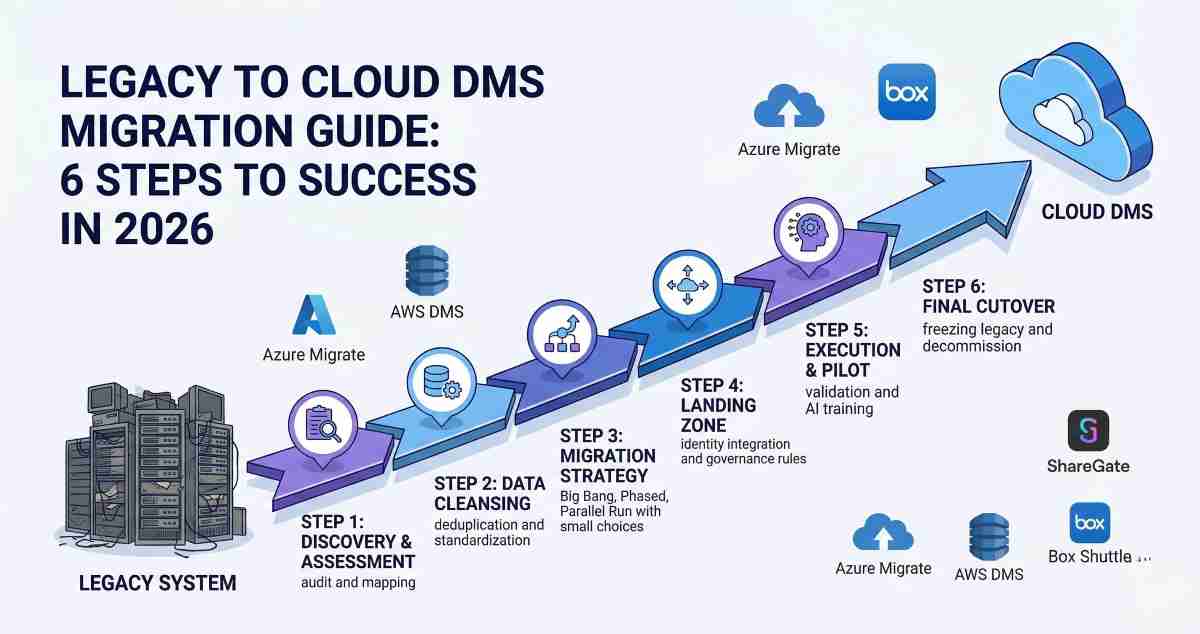
Migrating from a legacy "on-premise" server or an outdated file share to a modern Cloud Document Management System (DMS) is no longer a simple "copy-paste" operation. In 2026, data migration is a strategic transformation. With the rise of AI-driven search and strict data sovereignty laws like GDPR and DPDPA, how you move your data is just as important as the destination.
A Document Management System (DMS) is a centralized software framework used to track, manage, and store digitized documents, ensuring regulatory compliance and data integrity through versioning, metadata, and automated workflows. Following a structured migration path ensures that you don't just move your mess to the cloud—you modernize it.
Step 1: Discovery and Assessment (The Inventory)
Before moving a single byte, you must understand your current data landscape. Legacy systems are often "dark data" graveyards.
- Audit Your Assets: Use discovery tools to map out all on-premises servers, local drives, and legacy databases.
- Identify "ROT" Data: Redundant, Obsolete, and Trivial (ROT) data should be purged. On average, 30–40% of legacy data does not need to be migrated.
- Map Dependencies: Identify which applications (ERP, CRM, or HR systems) are currently pulling from these legacy files to prevent broken links post-migration.
Step 2: Data Cleansing and Normalization
"Garbage in, garbage out" is the ultimate rule of cloud migration.
- Deduplication: Use AI-powered tools like Informatica or Fivetran to identify and merge duplicate records.
- Format Standardization: Convert proprietary or obsolete file formats into cloud-friendly versions (e.g., converting legacy .doc to .docx or .pdf/A for long-term archiving).
- Metadata Mapping: Define how your old folder names will translate into new cloud "tags" or "content types."
Step 3: Choosing Your Migration Strategy
In 2026, there are three primary pathways to the cloud:
- Big Bang Migration: Moving all data in a single weekend. Best for smaller organizations with low downtime sensitivity.
- Phased Migration: Moving data in "waves" (e.g., Department by Department). This reduces risk and allows for troubleshooting between phases.
- Parallel Run: Running both the legacy and cloud systems simultaneously for a period to validate data integrity before a final cutover.
Step 4: Setting Up the "Landing Zone"
Your new Cloud DMS (whether it’s SharePoint, Box, or M-Files) needs a secure architecture before data arrives.
- Identity Integration: Sync your local Active Directory with your Cloud Identity Provider (e.g., Microsoft Entra ID or Okta).
- Zero-Trust Permissions: Apply the principle of least privilege. Do not carry over "Everyone" permissions from legacy shares.
- Governance Rules: Set up automated retention policies and sensitivity labels (e.g., "Confidential" vs. "Public").
Step 5: Execution and Pilot Testing
Never migrate your entire archive at once.
- The Pilot Run: Migrate a low-risk dataset (like the "Training" or "Marketing Archive" folders) first.
- Validation: Check row counts, file hashes (checksums), and metadata accuracy.
- AI Training: If using an AI-based DMS, this is the time to let the LLM "index" the pilot data to ensure search results are accurate.
Step 6: The Final Cutover and Decommissioning
Once the pilot is successful, execute the final move during off-peak hours.
- Change Data Capture (CDC): Use CDC tools to sync any "delta" changes made to files during the migration window.
- Freeze the Legacy Source: Switch the old server to "Read-Only" mode to prevent users from creating new versions in the wrong place.
- Decommission: After a 30-day stabilization period, archive the legacy database and physically decommission the old hardware.
Key Migration Tools for 2026
| Tool | Best For | Key Feature |
|---|---|---|
| Azure Migrate | Microsoft Ecosystem | Agentless discovery and automated business cases. |
| AWS DMS | Moving Databases to AWS | Minimal downtime and continuous replication. |
| ShareGate | SharePoint/Teams | Specialized for complex SharePoint-to-SharePoint moves. |
| Box Shuttle | Large Unstructured Data | High-speed migration for petabyte-scale file moves. |
Frequently Asked Questions (FAQs)
1. How long does a typical legacy-to-cloud migration take?
For a mid-sized organization (500–1,000 users), a thorough migration typically takes 3 to 6 months. This includes 4 weeks for discovery, 8 weeks for cleansing and mapping, and 4 weeks for the phased rollout and training.
2. Can we migrate our files without stopping work?
Yes. By using Change Data Capture (CDC) or "snapshot-and-catch-up" methods, users can continue working on the legacy system while data is mirrored to the cloud. A brief "read-only" window is only required during the final cutover (usually over a weekend).
3. Will our existing folder structures remain the same in the cloud?
Not necessarily. While you can recreate the same folder tree, 2026 best practices suggest moving toward a metadata-driven approach. This allows files to be found via "Tags" (e.g., Project Name, Expiration Date) rather than digging through ten levels of folders.
Advertisement