10 Best CPU Temperature Monitor Tools for PC Health (2026)
Advertisement
10 Best CPU Temperature Monitor Tools (2026)
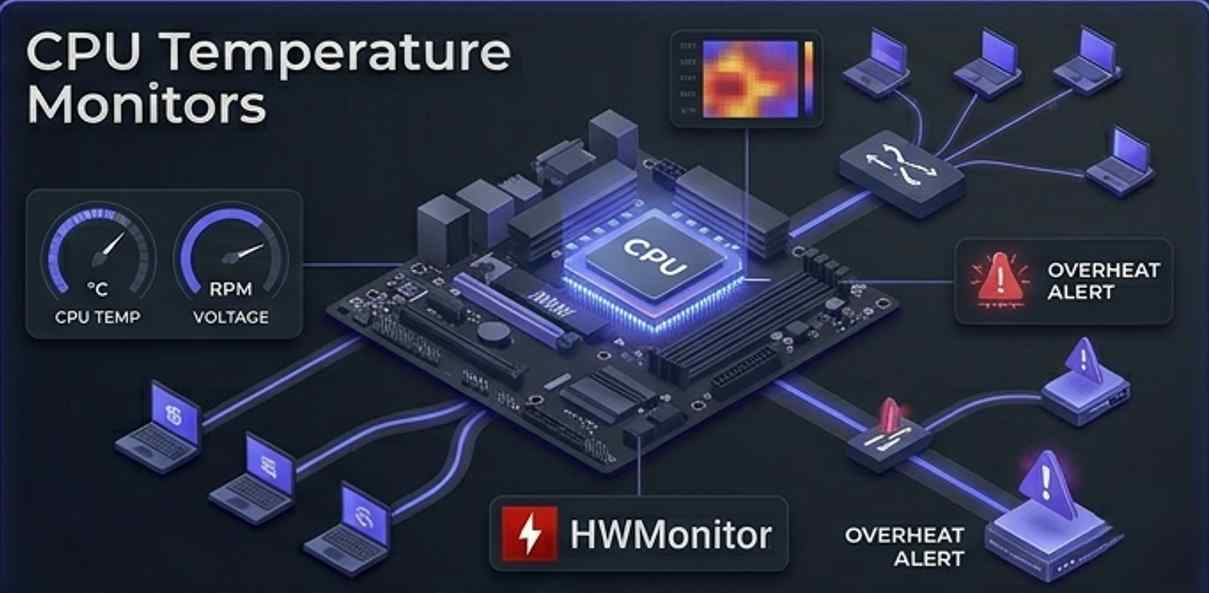
Modern monitoring solutions range from lightweight, open-source desktop widgets for individual users to massive, cloud-based infrastructure platforms designed for IT administrators managing thousands of endpoints. When managing enterprise hardware, IT professionals often align their hardware lifecycle and environmental monitoring policies with security and reliability standards defined by the NIST Computer Security Resource Center. Furthermore, many enterprise tools utilize standardized network protocols (like SNMP) defined by the IETF to pull hardware data remotely.
We have rigorously evaluated the industry's top system utilities to bring you the ten best CPU temperature monitoring tools available today, focusing on sensor accuracy, resource efficiency, and proactive alerting.
1. NinjaOne
NinjaOne is a comprehensive IT management and remote monitoring platform. It is designed for Managed Service Providers (MSPs) and internal IT teams that need to track CPU temperatures and hardware health across hundreds of remote endpoints simultaneously.
- Automated Alerting: Configure specific temperature thresholds that automatically trigger IT support tickets or alert emails before a remote server or workstation overheats.
- Historical Data Logs: Maintains long-term records of CPU temperature trends, which is invaluable for identifying failing cooling systems or planning hardware replacements.
- Remote Remediation: If a machine is overheating, administrators can remotely kill resource-heavy background processes or shut down the machine safely without user intervention.
2. HWMonitor (by CPUID)
HWMonitor is one of the most widely used and trusted standalone hardware monitoring programs in the world. Developed by the team behind CPU-Z, it provides a highly detailed, no-nonsense readout of your system's vital signs.
- Comprehensive Sensor Reading: Reads your PC's main health sensors including CPU core temperatures, voltages, fan speeds, and even GPU and hard drive temperatures.
- Min/Max Tracking: Automatically records the minimum and maximum temperatures reached during a session, which is perfect for checking thermal peaks after a heavy stress test.
- Product Link: You can download this lightweight utility directly at the CPUID HWMonitor official site.
3. Paessler PRTG Network Monitor
Paessler PRTG is an enterprise-grade infrastructure monitoring tool. Using its specialized WMI and SNMP sensors, it allows IT administrators to monitor the CPU temperatures of remote servers, routers, and switches from a central dashboard.
- Custom Dashboards: Create highly visual, map-based dashboards that display live temperature dials for every critical server in your data center.
- Multi-Channel Notifications: Alerts can be configured to push to email, SMS, Slack, or Microsoft Teams the instant a server room's hardware exceeds safe thermal limits.
- Hardware Lifecycle Management: Correlates high temperatures with CPU load and memory usage, helping you determine if a server needs better cooling or simply a hardware upgrade.
4. Core Temp
Core Temp is a compact, no-frills, incredibly accurate tool that focuses purely on monitoring processor temperature and nothing else. It is famous for its ability to display individual temperatures for every single core in a multi-core processor.
- Per-Core Tracking: Displays thermal fluctuations in real-time as workloads shift between different cores of your processor.
- Overheat Protection: Includes a built-in feature that can automatically shut down the computer, put it to sleep, or run a specific script if temperatures hit a critical threshold.
- System Tray Integration: Can display live temperature readings directly in your Windows taskbar for easy, continuous viewing without opening the app.
5. Speccy (by CCleaner)
Speccy is designed for users who want a clean, visually appealing overview of their entire system. While it monitors temperatures accurately, it also serves as a fantastic system information and auditing tool.
- Detailed Hardware Breakdown: Provides a massive amount of information on your motherboard, RAM timings, graphics card, and storage drives alongside temperature data.
- Snapshot Feature: Allows you to save your current system state and temperature readouts as an XML or text file, which is perfect for sharing with tech support.
- User-Friendly Interface: Avoids the cluttered, overwhelming spreadsheets of raw data found in other tools, presenting temperatures in a clean, categorized GUI.
6. HWiNFO
HWiNFO is the absolute gold standard for extreme PC enthusiasts and overclockers. It extracts the most granular, comprehensive hardware data possible, reading sensors that other software often misses.
- In-Depth Diagnostics: Provides highly detailed readouts on VRM (Voltage Regulator Module) temperatures, memory junction temps, and specific motherboard chipset heat levels.
- Customizable Logging: Can log temperature and voltage data to CSV files over long periods for deep analysis of hardware stability during endurance testing.
- RivaTuner Integration: Integrates seamlessly with RivaTuner Statistics Server (RTSS) to display live CPU and GPU temperatures as an overlay while you are playing video games.
7. Open Hardware Monitor
Open Hardware Monitor is a free, open-source application that monitors temperature sensors, fan speeds, voltages, and load/clock speeds. Because it is open-source, it is completely free of ads or bloatware.
- Portable Application: Does not require installation. You can run the executable directly from a USB flash drive, making it a perfect tool for traveling IT technicians.
- Customizable Interface: Allows you to rename sensors, hide data points you don't need, and display specific temperatures as a desktop gadget.
- Temperature Calibration: Includes manual calibration offset settings to ensure maximum accuracy if you know a specific motherboard sensor traditionally reads slightly hot or cold.
8. NZXT CAM
NZXT CAM is a highly polished monitoring and PC optimization tool designed primarily for gamers and PC builders. It is specifically optimized to interface with modern smart cooling hardware.
- In-Game Overlay: Features a beautifully designed, unintrusive overlay that shows CPU/GPU temps, frame rates, and resource usage while gaming.
- Smart Cooling Control: If you use NZXT hardware, CAM allows you to create custom fan curves that automatically ramp up fan speeds based on real-time CPU temperatures.
- Aesthetic Interface: Offers one of the most modern, sleek user interfaces in the hardware monitoring space, avoiding the dated "spreadsheet" look.
9. Real Temp
Real Temp is a specialized temperature monitoring program specifically designed for Intel Core processors (Single Core, Dual Core, Quad Core, and Core i7). It reads temperature data directly from the processor's core logic.
- TjMax Distance: Instead of just showing the current temperature, it displays how far your processor is from its "TjMax" (the critical temperature where the Intel processor will throttle or shut down).
- Sensor Test: Includes an automated sensor test that puts varying loads on your CPU to check if the internal thermal sensors are stuck or reporting accurately.
- High-Temperature Alarm: Features a simple but loud audible alarm and visual warning if your processor approaches dangerous heat levels.
10. AIDA64 Extreme
AIDA64 Extreme is a premium, industry-leading system diagnostic and benchmarking tool. It is used by hardware reviewers and engineers to stress-test CPUs and monitor the resulting thermal output.
- System Stability Test: Includes a brutal, built-in stress test that maxes out CPU, FPU, and cache usage to see exactly how high your temperatures will spike under worst-case scenarios.
- External Display Support: Can push live temperature and system data to external LCD/VFD screens, Logitech gaming keyboards, and even smartphone/tablet apps.
- Unmatched Hardware Database: Contains a massive database of over 200,000 devices, ensuring highly accurate sensor detection on even the most obscure or brand-new motherboards.
FAQs
What is a safe CPU temperature?
While it varies by processor generation, generally, idle temperatures should be between 35°C and 50°C. Under a heavy load (like gaming or rendering), temperatures between 70°C and 80°C are normal and safe. If your CPU consistently exceeds 90°C, it is overheating and you should check your cooling system.
Why are CPU temperature monitoring tools important?
These tools track real-time sensor data, including temperature, fan speed, and voltage. Monitoring CPU temperature is crucial because excessive heat can cause thermal throttling (slowing down your PC), degrade performance, and permanently damage vital components like the motherboard and processor.
How can I reduce my CPU temperature?
To lower temperatures, start by cleaning out any dust from your PC case and fans using compressed air. Ensure your computer is in a well-ventilated area away from direct heat. If temperatures remain high, you may need to reapply thermal paste between the CPU and cooler, or upgrade to a more powerful air or liquid cooling solution.
Advertisement